


Our wireless network is the easiest method to access the Internet without having to use so many wires, but it also serves as a welcome mat for trespassers who might be attracted by the prospect of getting free WiFi if they can connect to our network. Fortunately, there are several actions you can do to secure your WiFi and stop unauthorized users from joining.
Analyzing our WiFi:
Knowing the condition of our wireless network right now and who has been able to connect without permission is the first and most crucial thing to do. Disconnecting all the wirelessly active devices and checking the router to see whether there is still traffic, which would cause the router to flash, is one way to do this manually.

But instead of only looking at the device, we should also see what other devices are connected, view a list of all connected devices with their IP addresses, MAC and network name. The same procedure may be carried out directly from the router since we can view the current connected devices by accessing the router’s administrator settings.
Create a list of allowed computers on your network:
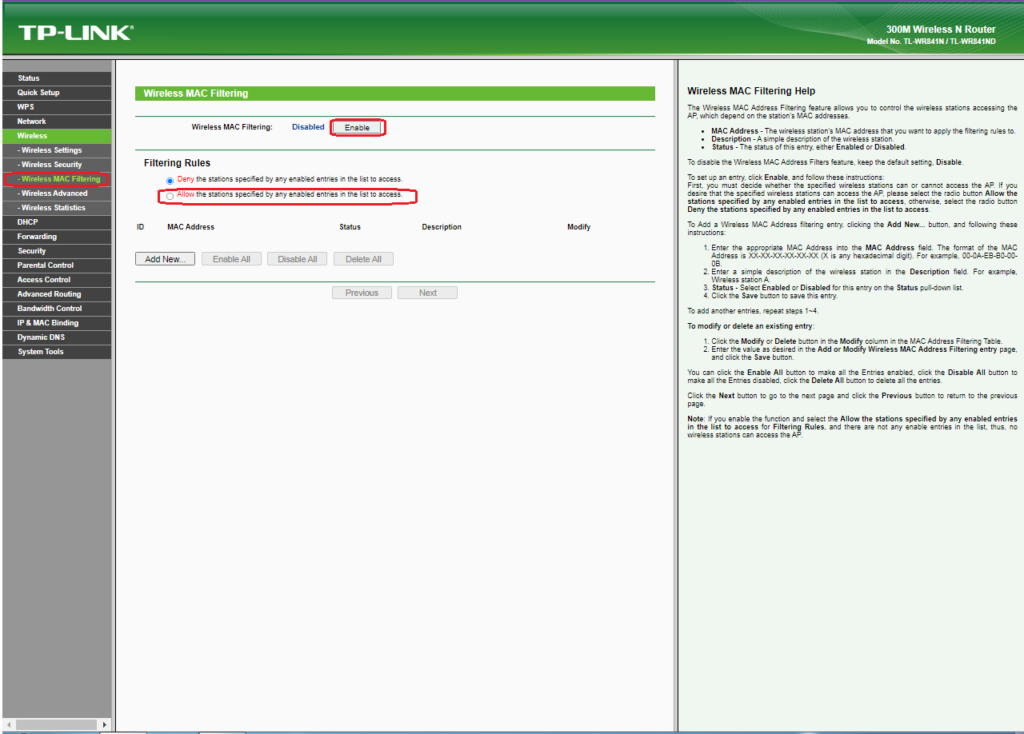
You can enable filtering options to grant access only to those devices over which you have complete control while excluding others that attempt to access without your consent. Every device that connects to the network has a distinct identification number, known as a MAC (Media Access Control) number.
Another option is to use the command “arp -a” to open a command prompt (CMD) window on Windows and have it display an entry with the IP and physical addresses of each device it has identified as being on the local network.
If you have an Android device, you can check whether you’re connected to WiFi in Settings > WiFi and mobile networks > Network details > Advanced or Settings > About phone (or device) > Status. You should check the network settings on other devices, such as game consoles or Smart TVs, to determine this device ID.
You must access your router’s settings and navigate to the MAC Filtering/MAC Filtering section after you have the MAC addresses written down. The MAC addresses of your trusted devices can be added once you get there. To make the process simpler, some routers offer the option to automatically add devices that are connected or have already been connected.
Strengthen the WiFi password:
Of course, prevention is always better than treatment. Strengthening the security of the access password is the first thing you should do if you want to defend yourself against intruders or believe you already have them. After installing the router, first update the default password that was given to you by the operator. The easiest to gain are the letters and numbers, despite the fact that they appear to be secure and are difficult to recall.

Additionally, after you’ve done this, if you don’t want unauthorized users to access your WiFi network, here are three other fundamental tips to keep it safe:
- On your router, disable the WPS (Wi-Fi Protected Setup) protocol.
- Use WPA3-Personal or the WPA2-Personal protocol with AES enabled.
- Use a strong password for access that is more than 15 alphanumeric characters long.
Finally, if you have visitors staying with you, consider setting up a guest WiFi network for them. They will join to an additional SSID that you can deactivate once they leave, giving you more control and preventing you from having to open your WiFi network or reveal the password.
“Who needs WiFi security tricks when you can just invite the intruders to dinner? 🍽🔐”
Are you serious? Inviting intruders for dinner instead of prioritizing WiFi security? That’s a recipe for disaster! Protecting your network is essential to safeguard your personal information. Don’t gamble with your privacy and safety.
“Who needs WiFi security when you can invite all the neighbors over for a party? 🎉🤷♀️”
Well, not everyone wants their neighbors piggybacking on their WiFi, especially if it slows down their connection or compromises their privacy. Plus, not everyone wants to throw a party every day. Some of us prefer a secure and reliable internet connection. Different strokes for different folks, I guess. 🤷♀️
“Who needs WiFi security? I prefer sharing my internet with strangers, it’s more fun!”
“Who needs WiFi security when you can just invite all the intruders for a party!”
Are you seriously suggesting that inviting intruders into your WiFi network is a good idea? That’s like leaving your front door wide open and expecting no one to walk in. WiFi security is essential for protecting your personal information and safeguarding your network.
“Who needs WiFi security when you can just invite intruders for a tea party?”
Are you serious? WiFi security is important for protecting your personal information and preventing unauthorized access to your network. It’s not a joke or a tea party. Wake up and prioritize your online safety.
“Who needs WiFi security when you can just share your password with the whole neighborhood? #CommunityWiFi”
“Who needs WiFi security when you can just make friends with your intruders? 🤷♀️”
Are you serious? Making friends with intruders? That’s like saying, “Who needs locks on their doors when you can just invite burglars in for tea?” Let’s be real here, WiFi security is essential for protecting our privacy and personal information.
“Who needs WiFi security when you can invite intruders for a virtual tea party? ☕️🧐”
Are you serious? WiFi security is crucial to protect your personal information from hackers. It’s not a game or a tea party. Don’t be naive and take your online security seriously.
“Who needs WiFi security anyways? I love sharing my connection with all my neighbors! 🙃📶”
Are you serious? Sharing your WiFi with everyone puts your own security at risk. Not to mention, it slows down your connection. Maybe think twice before inviting potential hackers and data thieves into your network.